PrivatePDF
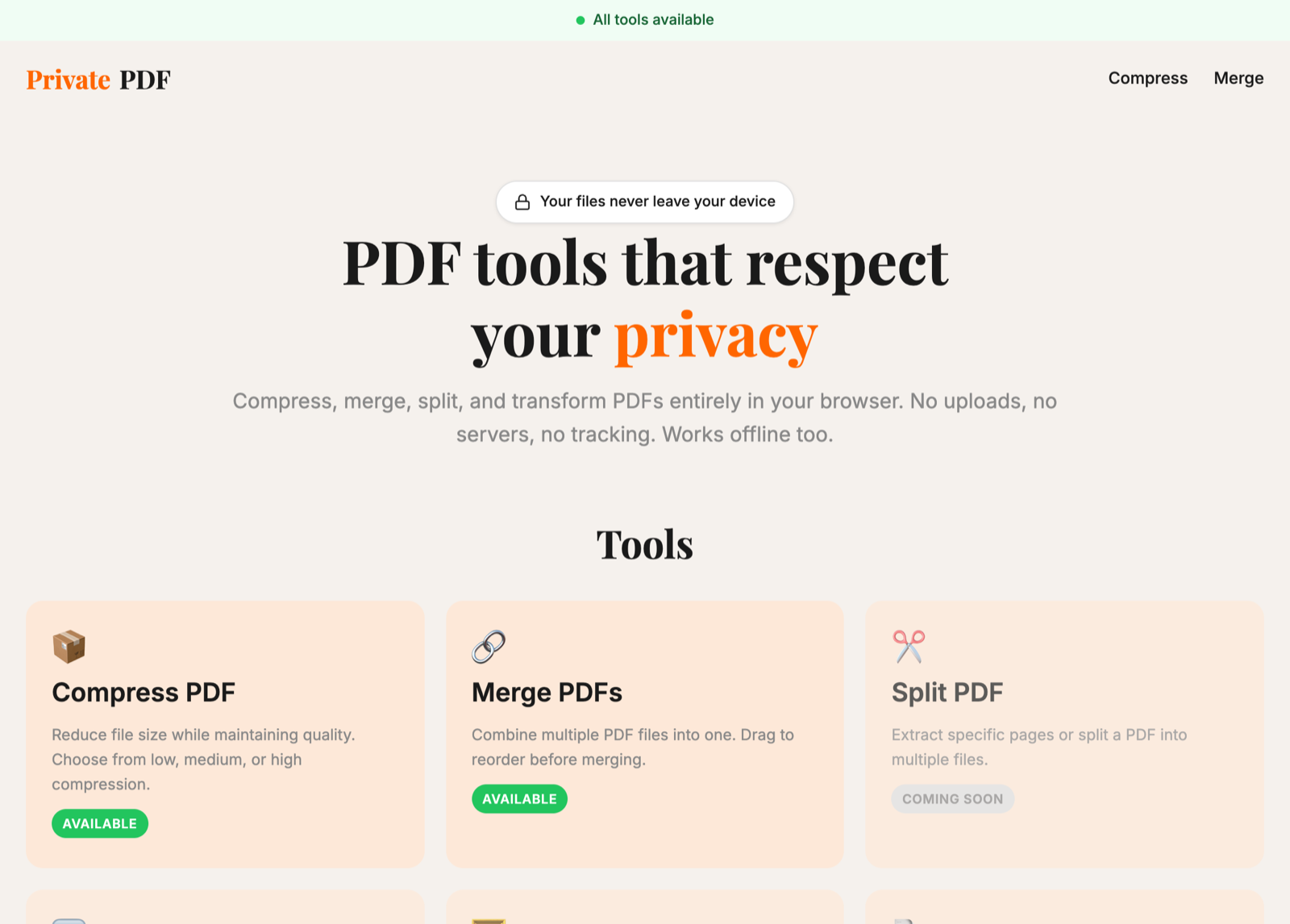
PDF tools that run entirely in your browser. Compress or merge a file without uploading it anywhere, and keep using them offline.
- Built
- Mar 2026
- Stack
- HTML, JavaScript, pdf-lib, PDF.js
- Runs in
- Any modern browser, offline too
- Status
- Live
why I built it
Every time I needed to shrink a PDF to fit an upload limit or combine a few scans, I ended up on a site that wanted the file on its server first. Those files were usually the ones I least wanted to hand over: bank statements, signed forms, ID copies.
Compressing and merging don’t need a server. A browser can open a PDF, rewrite it and hand it back. So I built the two tools I actually use, and nothing in them sends your file anywhere.
what it replaces
Online PDF sites that upload your file to their server, and charge a subscription once you go past a few files a day.
what it does
- Nothing is uploadedEvery step runs in your browser with pdf-lib and PDF.js. There's no server to send a file to.
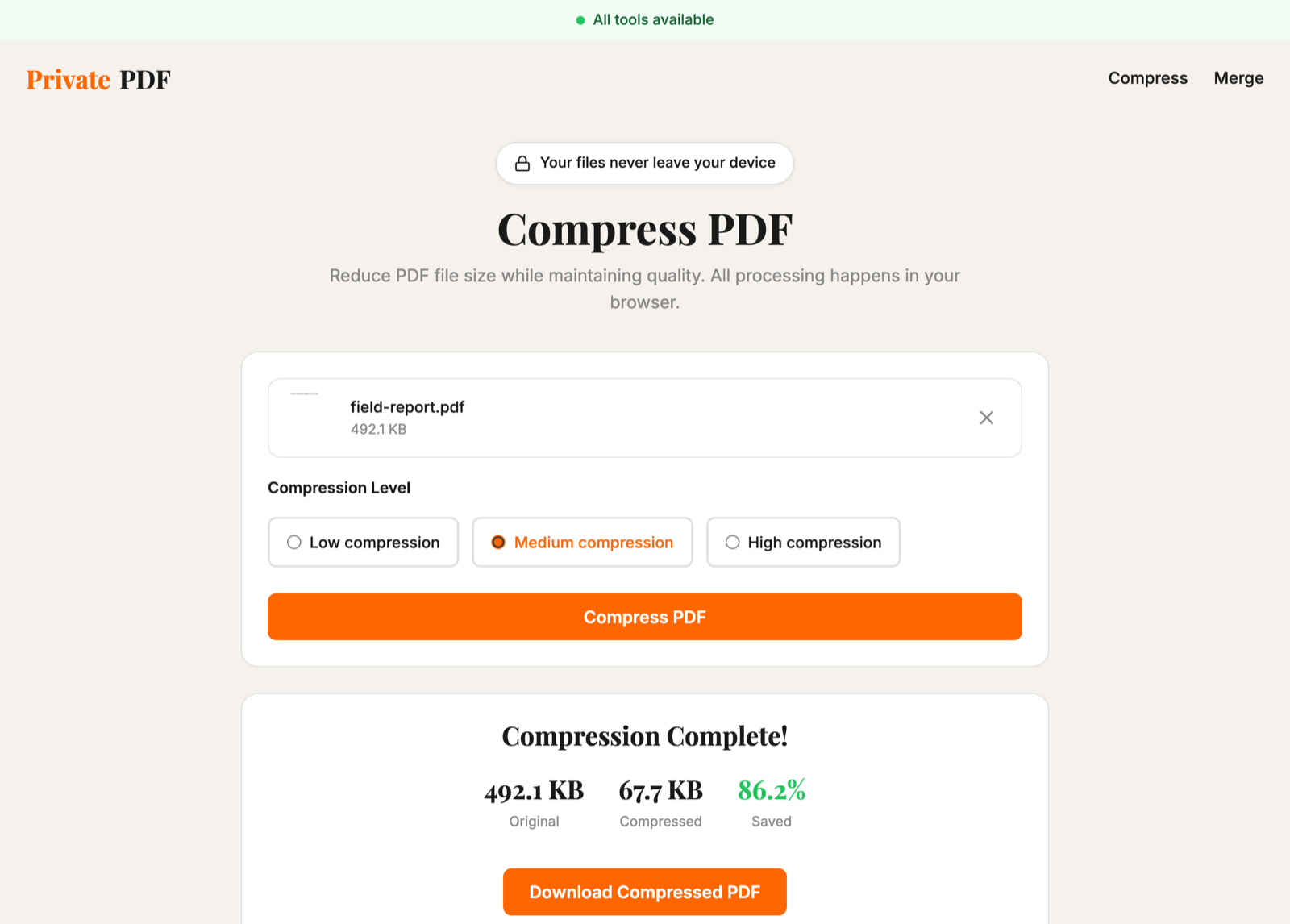
- Three compression levelsLow tidies the file's structure and strips metadata. Medium and high also re-render each page as a smaller image, and keep whichever result is smaller.
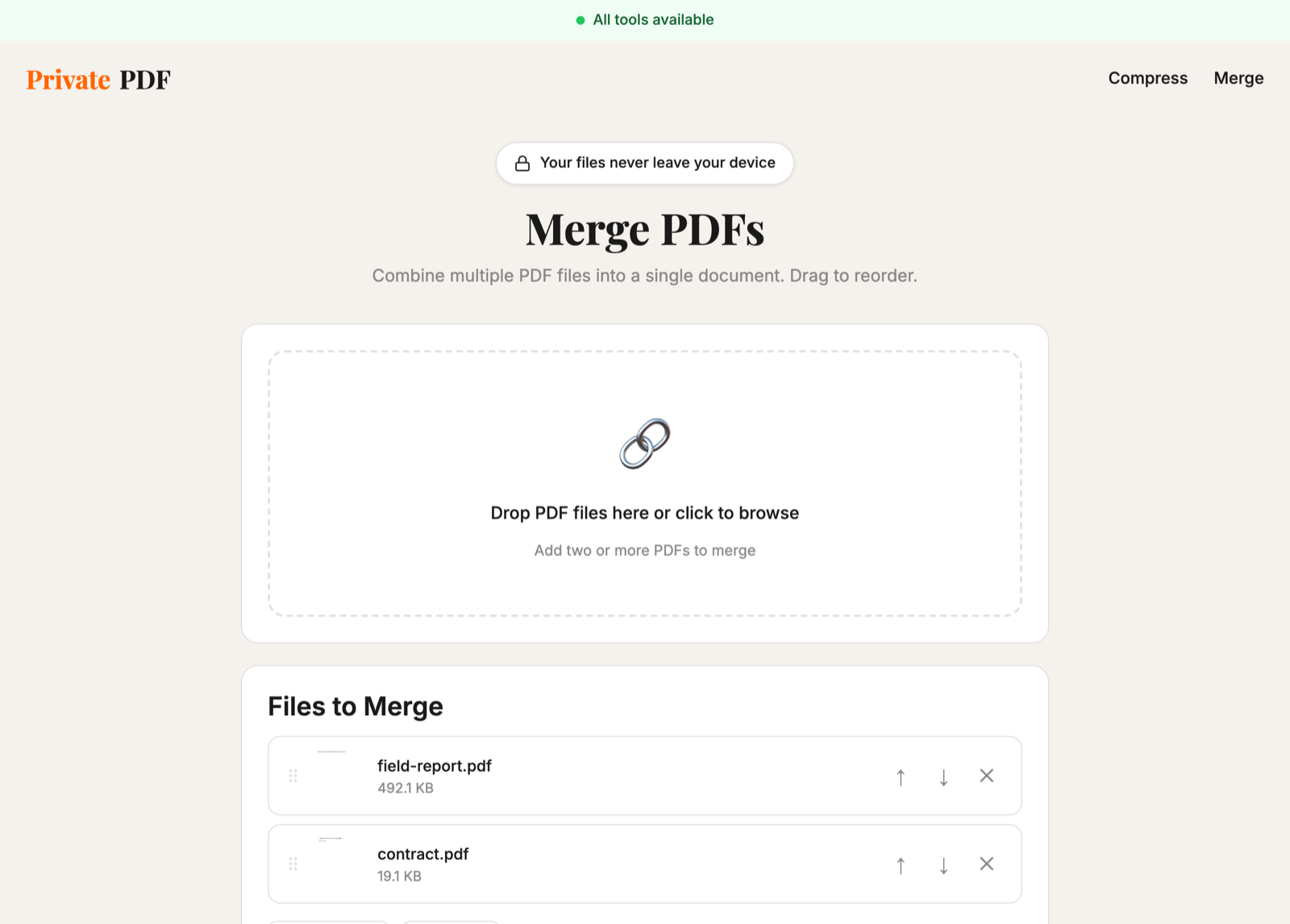
- Merge in any orderAdd as many PDFs as you like, reorder them by dragging or with the arrows, and download one file.
- Works offlineAfter your first visit it installs as an app and keeps working without internet.
- No account, no limitsNo sign-up, no daily file limit and no watermark. Compress takes files up to 100 MB.
screens
how to get it
- Open pdf.saasisdying.com and pick Compress or Merge.
- Drop in your PDF, choose your options and download the result.
- To use it offline, install it from your browser's address bar after the first visit.
Medium and high compression turn each page into an image, so the text in the result can't be selected or searched. Use low when you need to keep the text.
what's next
- Split a PDF, rotate pages, and convert between PDFs and images.
- Compressing images inside the PDF while keeping the text selectable.